Saturday, January 7, 2012

Screen design changes using JScript

I continue to be impressed with what can be achieved with JScript and LSO. The other day I wanted to improve the readability of a screen. Using personalisations I hid unnecessary fields, but I was then left with fields scattered across a screen that I wanted to group together. JScript allows me to find controls on the screen and move these around with the Grid.SetColumn and Grid.SetRow functions:

import System;
import System.Windows;
import System.Windows.Controls;
import MForms;

package MForms.JScript {
   class MMS001_ChangeItemFieldPos {
      public function Init(element: Object, args: Object, controller : Object, debug : Object) {
         var content : Object = controller.RenderEngine.Content;

         //Find the control we want to move
         var textBoxItem = ScriptUtil.FindChild(content, "MMITNO");

         //Specify where we want to move the control to
         Grid.SetColumn(textBoxItem, 50);
         Grid.SetRow(textBoxItem, 1);

      }
   }
}
Prior to running this script the screen looks like this:

After running the script the Item number field has been moved:


Combined with the ability to set the Tab Order in LSO we're able to create streamlined panels that show just the information we're interested in, and group them together into business or user-specific groupings.

Saturday, November 5, 2011

Creating custom List and Get APIs

As part of a project to pull out modifications from a M3 installation I'm making a lot of use of APIs.  Whether it's using the cool new Jscript functionality that allows calling APIs within LSO, or the tried and true method building mini-applications in Excel for mass-manipulation of data I seem to be looking at and using APIs every day.

Occasionally I come across situations where an API doesn't exist for the function I want to perform.  If it's a Add or Update function I'll build a Web Service or get a custom API written, but for Get and List functions there is a (it seems not well known) function that allows the creation of a custom API against M3 table.


For example I needed to query the material data safety information in the M3 database (MSS051).
Looking at MRS001 I saw that there wasn't an existing API for the MSS05x tables.  So I needed to create one.

To do this there are a number of programs I'll use:
  • M3 / Database metadata -  there are a number of tools available that show the table associated with a M3 program.  Use your favourite one.
  • Database query tool - I use WinSQL as it's free and good.  Any query tool that will allow you to see the indices on the database tables will do.
  • MNS185 - allows the creation of a custom browse definition that can then be queried by an API.
  • CRS990MI - the API that will allow us to query the custom browse definition.
Step 1 - determine the database table and index to use
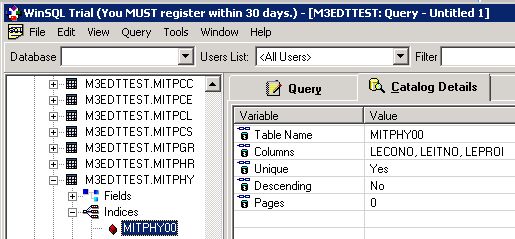
Querying my trusty metadata tool I see that MSS051 data is stored in the mitphy table.  Looking at the indices on this table I can see that mitphy00 allows me to query the table based on the following fields:

This is good as those are the fields that I will have available in my application to query against.  If I couldn't find an existing index that meets my needs I'd check CRS021 to see if I can create a custom index on this table.  See Lawson documentation for how CRS021 works or ask a question in the comments.  Conceptually I could also create an index on the table directly from SQL, but that would probably be unsupported by Lawson.

Step 2 - create the custom browse definition
The M3 program MNS185 allows me to create a custom browse definition.  Note that when creating custom browse definitions you should use sorting order 2.  First I define a field and variant code.  It doesn't seem to matter what you enter here, but following the standards shown in sorting order 1 are a good idea.
In the E panel you specify the browse program (MSS051 in this case) and the number of filters you want applied in the API call.  This is particularly important, as you can create both Get and List browse definitions by changing the number of filters.  In this case by specifying 2 filters I am querying on the CONO and ITNO fields to get a List of all PROIs returned.  If I instead changed the filters to 3 I would query on the CONO, ITNO and PROI fields and Get a single record returned.
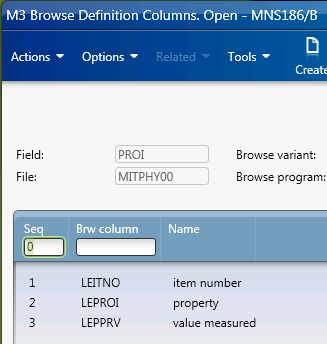
In MNS186 you then specify the data you want returned from your custom API call.  You can specify up to 15 fields from the table.
Once that is done you will have your browse definition created in MNS185:
From there you can query it using MITest, an Excel spreadsheet, JScript or any other API tool

Step 3 - query the custom browse definition
Testing your custom browse definition is easy.  Fire up MITest and connect to CRS990MI and perform the query:
Note that I'm using LstBrowse as I want a list of all matching records.
Looking at one of these returned results I can see the information as shown in M3:

And that's all there is to it.  Creating custom Get and List APIs is easy with MNS185 :-)

Friday, September 16, 2011

New M3 blog

Thibaud has a new blog M3 ideas.  Some interesting stuff there - I'm particularly keen on trying out the integration with Skype.

Monday, September 5, 2011

New LSO jscript / mashups blog

Karin has started blogging on LSO jscript and mashup development over at lawsonsmartoffice.wordpress.com.  I've been using the new jscript & API functionality from the May 2011 M3 10.1 heartbeat release for a couple of months now that is mentioned in the latest post, but I hadn't picked up on the ability to limit the fields returned from an API call to jscript.  Thanks Karin for the pointer!  This will significantly speed up a couple of jscripts that were beginning to get a little slow.

Wednesday, October 13, 2010

LSO & Jscript

Scott has started posting about his development experiences with Lawson Smart Office and Jscript at http://potatoit.wordpress.com.  Worth a look.

Saturday, March 6, 2010

Interfacing Excel with M3 via APIs

Automating many functions in M3 can be achieved through the use of APIs. APIs are defined in MRS001 and should be tested thoroughly using Lawson's MITest tool before you attempt to use them via Excel.


Note that my documentation below is based on Excel 2000, later versions can have slightly different menu names etc, but the functionality is the same.

Add the API dll to Excel
In Excel open the Visual Basic editor and choose Tools, References.  Add a reference to the M3 API dll

Open a connection to M3
In your VB code add the following:

'Init M3 API variables
Dim Sock As New MvxSockX
Dim transStr As String
Dim Result As String
Dim rc As Long
       
'Connect to M3.  Note that servername, port, username, password
'and apiprogram are the same values you would have used in MITest
rc = Sock.MvxSockConnect(servername, port, username, password, apiprogram, "")

'Check for connection error
If rc <> 0 Then Sock.MvxSockShowLastError ("Error while Initializing")

Build the API command string
When you used MITest to test the API command you wanted to use you will have noted a fixed-with string was sent to M3.  Here we will build this string.

'Obtain the lines from a PDS090 Matrix
transStr = Space(500)
Mid(transStr, 1) = "ListLine"
Mid(transStr, 16) = "100"              'Company
Mid(transStr, 19) = "TEST"             'Matrix


Send the command to M3 and process the result
Here we send the command we built above to M3 and look at the result

'Send API command to M3
rc = Sock.MvxSockTrans(transStr, Result)
       
'If the command resulted in an error, exist showing that error message
If rc <> 0 Then
  Sock.MvxSockShowLastError ("")
  Exit Sub
End If

Close the connection to M3 once you are done
Note that you should open a single connection per API and use this as many times in your program before you close it.  

'Close connection to M3
Sock.MvxSockClose

Complete examples
I tend to have a Parameters tab where the username, password etc are entered.
The standard layout of our mass-update tools looks like this
The Get Data button links to the GetClothMatrixData_Click script below, the Update Data button links to the UpdateClothMatrixData_Click script below.  The Add Data button links to a script similar to the Update Data script.  Finally the Clear Spreadsheet script simply removes the data in the spreadsheet.

This example opens a Matrix in PDS090 then gets all the information from that Matrix and returns it to Excel.
Private Sub GetClothMatrixData_Click()

    Application.Goto ("ClothMatrixDataStart")
    ActiveCell.Offset(1, 0).Select
    If ActiveCell.Value = "" Then
   
        Dim Sock As New MvxSockX
        Dim transStr As String
        Dim Result As String
        Dim rc As Long
       
        rc = Sock.MvxSockConnect(Sheets("Parameters").Range("Computer").Value, Sheets("Parameters").Range("Port").Value, Sheets("Parameters").Range("Username").Value, Sheets("Parameters").Range("Password").Value, "PDS090MI", "")
        If rc <> 0 Then Sock.MvxSockShowLastError ("Error while Initializing")
   
        ' Set max number of items returned. Default is 100
        rc = Sock.MvxSockTrans("SetLstMaxRec   49999", Result)
       
        Application.Goto ("ClothMatrixDataStart")
        ActiveCell.Offset(1, 0).Select
       
        transStr = Space(500)
       
        'List the items in the location
        Mid(transStr, 1) = "ListLine"
        Mid(transStr, 16) = Sheets("Cloth Matrix").Range("ClothMatrixCompany").Value        'Company
        Mid(transStr, 19) = Sheets("Cloth Matrix").Range("ClothMatrix").Value              'Matrix
        rc = Sock.MvxSockTrans(transStr, Result)
       
        If rc <> 0 Then
            Sock.MvxSockShowLastError ("")
            Exit Sub
        End If
       
        'If we have a response then enter the loop
        If Trim(Mid(Result, 1, 3)) = "REP" Then
            Do
                ActiveCell.Value = Trim(Mid(Result, 34, 15)) 'Cloth
                ActiveCell.Offset(0, 1).Value = Trim(Mid(Result, 24, 10)) 'Valid Date
                ActiveCell.Offset(0, 2).Value = Trim(Mid(Result, 214, 15)) 'Result
                ActiveCell.Offset(1, 0).Select
           
                'Get the next line of the result
                Result = Space(500)
                rc = Sock.MvxSockReceive(Result)
                If rc <> 0 Then
                    Sock.MvxSockShowLastError ("")
                    Exit Sub
                End If
           
            Loop Until Trim(Mid(Result, 1, 3)) <> "REP"
        End If
       
        Application.Goto ("ClothMatrixDataStart")
        ActiveCell.Offset(1, 0).Select
        Sock.MvxSockClose

    End If

End Sub


This example parses through a list in Excel then updates the associated records in a M3 PDS090 Matrix

Private Sub UpdateClothMatrixData_Click()

    Application.Goto ("ClothMatrixDataStart")
    ActiveCell.Offset(1, 0).Select
    If ActiveCell.Value <> "" Then
   
        Dim Sock As New MvxSockX
        Dim transStr As String
        Dim Result As String
        Dim rc As Long
       
        rc = Sock.MvxSockConnect(Sheets("Parameters").Range("Computer").Value, Sheets("Parameters").Range("Port").Value, Sheets("Parameters").Range("Username").Value, Sheets("Parameters").Range("Password").Value, "PDS090MI", "")
        If rc <> 0 Then Sock.MvxSockShowLastError ("Error while Initializing")
   
        Do
       
            transStr = Space(500)
       
            Mid(transStr, 1) = "UpdateLine"
            Mid(transStr, 16) = Sheets("Cloth Matrix").Range("ClothMatrixCompany").Value 'Company
            Mid(transStr, 19) = Sheets("Cloth Matrix").Range("ClothMatrix").Value 'Matrix
            Mid(transStr, 24) = ActiveCell.Value 'Cloth
            Mid(transStr, 114) = ActiveCell.Offset(0, 1).Value 'Valid from
            Mid(transStr, 124) = ActiveCell.Offset(0, 2).Value 'Result
           
            rc = Sock.MvxSockTrans(transStr, Result)
           
            If rc <> 0 Then
                Sock.MvxSockShowLastError ("")
                Exit Sub
            End If
           
            ActiveCell.Offset(0, 4).Value = Result
            ActiveCell.Offset(1, 0).Select
       
        Loop Until ActiveCell.Value = ""
       
       
        Application.Goto ("ClothMatrixDataStart")
        ActiveCell.Offset(1, 0).Select
        Sock.MvxSockClose


    End If

End Sub


Using Excel and APIs we are able to manipulate tens of thousands of records quickly and easily while still using the M3 business engine.  When APIs don't offer the functionality required you can also make use of Web Services from Excel which I will discuss in my next post.

Monday, February 1, 2010

Creating a M3 Web Service

I recently needed to use Lawson Web Services (LWS) for M3 to address some automation issues that APIs did not exist for.  LWS allows Web Services to programmatically access most M3 programs and function.

In this post I will show how to create a Web Service.  In a subsequent post I'll show how to consume this Web Service from Microsoft Excel.

Creating a Web Service to calculate the Cost of a variant (PCS230)


In this example we will start by loading PDS001, choose Related Options, Product Costing to start PCS230 and then run Costing for type 3 (standard):


Step 1 - Set programs to use A panel if possible
LWS works best with programs that can use the A panel.  We'll set PDS001 to use this:
Step 2 - Document the field names to enter data in programs/panels
When creating the Web Service we will need to specify the field names in panels we want to change
Step 3 - Document the key presses required
The Web Service will follow almost exactly the same key presses as is used in Workplace/Smart Client/Smart Office, so document the panel sequence, fields and keys pressed.

Our process is as follows
  • PDS001/A - Set WWFACI (Facility), W1PRNO (Product Number)
  • PDS001/A - Choose function 25 (Calculate Cost)
  • PCS230/E - Set WWPCTP (Costing Type), WWPCDT (Costing Date), WWCOUP (Calc purch/dist), WWPPRD (Purch price dt), WWSTRD (Structure Date), WWALVL (All levels)
  • PCS230/E - Press ENTER, then ENTER again (to accept the warning that the standard cost will be updated)
  • PCS230/F - Press ENTER
  • PDS001/A - Press F3 to exit the program
Step 4 - Build the Web Service in LWS
Note that you need to have LWS up and running.  Follow Lawson's instructions in the LWS Instllation Guide & User guide for this.  Check diagnostics in LWS to confirm that your setup is correct.  It should look something like this:

4.1 Create a new Web Service


4.2 Then define the parameters for the program to be called and test. This video is too large to embed here so click to see Web Service Creation Walkthrough

A few final notes about creation of Web Services:
  • When creating Web Services you can turn on the Interactive option for particular program/panels.  This is very useful to diagnose problems.
  • Web Services do not allow for branching logic within the Web Service. If you need to perform different actions based on the data, you will need to create a different Web Service for each action.
  • Not all programs allow for Web Services.  There appears to be a way to turn the warning off within LWS for this, however I have not yet tested this.