Sunday, November 24, 2019

Querying Infor's Datalake via Compass and ION APIs

When data has been published to Infor's Datalake from Infor or non-Infor applications we can access this data from the newly provided Compass API via ION APIs as follows:


Find the datalakeapi API & click Documentation:


The API methods exposed are:


We will use the POST / jobs API to submit our query, then GET /jobs/status to see if the query has completed and finally GET /jobs/result to get the result of the query.


This returns a query ID that we can use to obtain the status of our query and eventually get the result of the query:


Querying the status of the compass API call via GET /jobs/status:


As the status is FINISHED we can now request the result of the query by calling GET /jobs/result:


So the result of the query (select count(*) from MITBAL) against our data in Datalake is 22,624 records.

We can then leverage this capability through external tools like Powershell as described here.

Tuesday, November 19, 2019

Calling ION APIs from Powershell

Further to the post on how to call ION APIs from Postman, here are quick notes on how to call ION APIs from Powershell:

In the last post we had a json file from ION API with the credentials information:

{
"ti":"######_TRN",
"cn":"Example_TRN",
"dt":"12",
"ci":"######_TRN~********************",
"cs":"@@@@@@@@@@@@@@@@@@@@@@@@@@@@@@@",
"iu":"https://mingle-ionapi.se2.inforcloudsuite.com",
"pu":"https://mingle-sso.se2.inforcloudsuite.com:443/######_TRN/as/",
"oa":"authorization.oauth2",
"ot":"token.oauth2",
"or":"revoke_token.oauth2",
"ev":"^^^^^^^^^^^^",
"v":"1.0",
"saak":"######_TRN$$$$$$$$$$$$$$$$$$$",
"sask":":::::::::::::::::::::::::::::"

}

And a URI:

https://mingle-ionapi.se2.inforcloudsuite.com/#######_TRN/M3/m3api-rest/execute/EXPORTMI/Select/?SEPC=%7C&HDRS=1&QERY=count(*)%20from%20MITTRA
We can use this information to call the ION API from Powershell:

#Set the URI

$Uri = "https://mingle-sso.se2.inforcloudsuite.com:443/####_TRN/as/token.oauth2"

Set the token request:

$Body = @{
grant_type = 'password'
username = '######_TRN$$$$$$$$$$$$$$$$$$$'
password = ':::::::::::::::::::::::::::::'
client_id = '######_TRN~********************'
client_secret = '@@@@@@@@@@@@@@@@@@@@@@@@@@@@@@@'
scope = ''
redirect_uri = 'https://localhost/'
}

Request the token from ION API:

$AuthResult = Invoke-RestMethod -Method Post -Uri $Uri -Body $Body

We can show the token in Powershell:

$AuthResult.access_token

We then call the API, passing in the URI and the token:

$output = Invoke-RestMethod -Uri 'https://mingle-ionapi.se2.inforcloudsuite.com/#######_TRN/M3/m3api-rest/execute/EXPORTMI/Select/?SEPC=%7C&HDRS=1&QERY=count(*)%20from%20MITTRA' -Headers @{ 'Authorization' = 'Bearer TokenValue' }

Get the result of the API call - in this case the number of records in MITTRA

$output.miResult.MIRecord.NameValue.Value

In Powershell this is:

Giving us a row count for MITTRA of 4,152,575 rows.

Calling ION APIs from Postman

The first step in integrating to Infor's Multi-tenant CloudSuite via ION APIs is by simulating the call of these using a tool like Postman. This article will quickly run through the process for this. In this we:

  1. Obtain the URL to call an ION API
  2. Create an authorised transaction that can call the ION API
  3. Call the ION API from Postman


Step 1: Calling the API from ION API in Ming.le

Select the suite to call the API from. I'll use M3:

Find the API to use, then click Documentation:

Select the API transaction to use, then click Try it out:

Enter the parameters to use for the API transaction and click Execute:

Save the request URL returned e.g.

https://mingle-ionapi.se2.inforcloudsuite.com/#######_TRN/M3/m3api-rest/execute/EXPORTMI/Select/?SEPC=%7C&HDRS=1&QERY=count(*)%20from%20MITTRA

Step 2: Creating an ION API Authorised application

From ION ION create a new Authorised App / Backend service:


Then Download Credentials:

Set the credentials to be a service account, then specify the user to use.

The json file returned will look like this:
{
"ti":"######_TRN",
"cn":"Example_TRN",
"dt":"12",
"ci":"######_TRN~********************",
"cs":"@@@@@@@@@@@@@@@@@@@@@@@@@@@@@@@",
"iu":"https://mingle-ionapi.se2.inforcloudsuite.com",
"pu":"https://mingle-sso.se2.inforcloudsuite.com:443/######_TRN/as/",
"oa":"authorization.oauth2",
"ot":"token.oauth2",
"or":"revoke_token.oauth2",
"ev":"^^^^^^^^^^^^",
"v":"1.0",
"saak":"######_TRN$$$$$$$$$$$$$$$$$$$",
"sask":":::::::::::::::::::::::::::::"

}

Step 3: Calling the ION API from Postman

In Postman, paste the request URL from step 1 into the URL field:

On the Authorisation tab, change the type to OAuth 2.0, and click the Get New Access Token button:

Change the Grant Type to Password Credentials.
Enter pu + ot from the json file into the Access Token URL e.g.
https://mingle-sso.se2.inforcloudsuite.com:443/######_TRN/as/token.oauth2
Enter saak from the json file into the Username.
Enter sask from the json file into the Password.
Enter ci from the json file into the Client ID.
Enter cs from the json file into the Client Secret.

Click Request Token. This will return a token. Click Use Token.

This will put the token into the Access Token field. Then click Send to call the ION API:

This returns the data requested.

For more details see the Infor presentation here.

Monday, October 29, 2018

EXPORTMI now available in M3 13.4 and M3 CE for SQL-like ad-hoc access to tables

During the IMUN conference last week, Ole Rasmussen mentioned Infor's new API EXPORTMI that allows us to perform SQL-like queries over M3 tables.  While we could achieve the same functionality by building custom APIs using MDBREADMI or CRS990MI, this gives power users and consultants a quick and dirty solution to pull data out of tables on an ad-hoc basis.

Using i3 Consulting's Excel REST API tool, talking to a M3 instance in Infor's cloud, we can see this in action:

This capability is a critical requirement for single and multi-tenant customers in Infor's cloud as SQL access is typically limited in single tenant and outright banned in multi-tenant.

The functionality is described in NCR 9965.

Thursday, February 23, 2017

Configurable XML documents from M3

Infor has just released the XML output capability that was announced as part of the 13.4 deliverable and was originally expected late last year.  This is an alternative to the streamfiles that Movex / M3 has traditionally generated and provides another great opportunity for modification elimination.

The release notes are here.

The Infor press release is below.

"Infor M3 Configurable Output Management enables the use of extensible self-contained business documents in XML format combined with OpenText™ StreamServe StoryTeller, a marketing-leading document layout tool. 
For existing customers, Infor M3 Configurable Output Management and the use of XML can help simplify the creation and maintenance of business documents. 
For new Infor M3 customers, Infor M3 Configurable Output Management and XML can act as a project accelerator through reduction of the time required to define business documents. This phase one delivery enables you to switch invoice and credit note-related documents to the new XML format. The plan is to deliver more business document types for the Infor M3 13.4 platform. 

Why adopt Infor M3 Configurable Output Management

  • Switching to XML business documents within Infor M3 can help reduce the cost of ownership of your solution by reducing the need for source code modifications and simplifying the tailoring of business document layouts.
  • You can keep all your business documents when there is an upgrade to Infor M3 13.4 and you can move them to the new Infor M3 Configurable Output Management XML format whenever it suits your business, i.e. no immediate migration requirement.
  • Provides greater flexibility in the generation of XML business documents, including the ability to extend with custom elements and user defined fields without the need for any source code modifications.
  • All applicable XML business documents are self-contained, include relevant language translations and use standard data formats.
  • The Infor M3 base StreamServe bundle includes new added value components, such as the StoryTeller layout tool, and customers that have a valid support agreement for the product can upgrade to the new bundle free of license charges.
  • Use the newest capabilities of StreamServe, such as StoryTeller, which is designed to help reduce the number of document layouts that your customers need to maintain. In the new solution, layouts can be maintained in a global project template. 
Infor M3 version compatibility 
Infor M3 customers need to be on Infor M3 13.4 or later to use the new Infor M3 Configurable Output Management capabilities."

Tuesday, October 4, 2016

Smart Office 10.2 hotfix 17 resolves JScript not working on Windows 10

Infor have recently released hotfix 17 for Smart Office 10.2.  This resolves a number of bugs including the issue with JScripts not working on Windows 10 machines :).

The fix doesn't appear to have been back-ported yet to earlier versions of Smart Office - so M3 7.1 customers with Windows 10 are still unable to run JScripts.

Smart Office Hotfix 17 is available via CCSS.

Friday, August 12, 2016

Windows 10 patch MS16-072 / 3163622 / 3163018 can break Smart Office *WORKAROUND*

A couple of months ago I logged an issue with Xtreme regarding Smart Office client being unable to communicate with the Smart Office server.  This has become a more significant issue with the Windows 10 anniversary edition also breaking JScripts running within Smart Office.

Today I have received a suggested workaround from Infor now to resolve the issue of windows updates stopping Smart Office loading.  I've tried this on a couple of sites and it appears to address the issue.  The workaround is:

1. Download IIS Crypto 2.0 from Nartac.
2. Install this on the PC
3. In IIS Crypto 2.0 on the Cipher Suite tab (1), untick the TLS_DHE_RSA_WITH_AES_128_CBC_SHA Cipher (2) then click Apply (3):

4. Reboot the PC.

Smart Office should now load correctly.  I've tested this against multiple sites and multiple versions of Smart Office and all the Smart Office instances that were not working now do work.

Unfortunately this does not resolve the JScript issue :(

Thursday, August 4, 2016

Windows 10 Anniversary edition stops JScripts from loading in Smart Office

The Windows 10 Anniversary update has just rolled out and with it has come more problems for Infor's Smart Office.

When using a panel that has a JScript attached to it, the JScript does not load and an error message is logged within the Smart Office log e.g.

5/05/2016 9:29:30 PM ERROR MForms.Render.RenderEngine.PostRender Failed to run scripts
System.IO.FileNotFoundException: Could not load file or assembly 'file:///C:\Users\user\AppData\Local\Temp\aibwfam0.dll' or one of its dependencies. The system cannot find the file specified.
File name: 'file:///C:\Users\user\AppData\Local\Temp\aibwfam0.dll'

Infor don't have a resolution to this yet, much like the problem with the Microsoft patch that on certain configurations broke Smart Office altogether, the current recommendation from IRD is to not install the Anniversary update.

Monday, July 18, 2016

Simple event-driven automations with Event hub and MEC - overview

At Inforum 2016 this year I presented a simple pattern we'd developed across multiple projects to automate and apply business rules when transactions occur in the M3 business engine.

Historically we have used JScripts to achieve this within Smart Office, but a number of factors have driven us away from this approach.  These include:
  • the increased maturity of the H5 client;
  • the inclusion of the H5 enterprise features within the foundation client as of Infor Xi;
  • an increasing diversity of data input mechanisms across our customer base (M3WM, custom applications, data feeds from PLCs etc.); and 
  • the problems inherent to applying business rules at the UI level that could be bypassed by users.
While JScripts still have their place, for set and forget application of business rules along the lines of "if this then that", there are better approaches now available.

We first investigated Infor's Ming.le a couple of years back, but when we started looking into Ming.le our assessment was that it was not mature enough to meet out needs.  Note that this has now changed, we have used Ming.le on a few projects and we are very excited by the possibilities offered by Ming.le within the Infor Xi stack.

Nonetheless, while at the time we were not convinced that Ming.le was appropriate for our needs, the technology underpinning Ming.le was of interest.  Specifically Event hub which monitors all transactions within M3 and allowed us to capture:
  • Start and stop of M3 programs including batch programs;
  • Create, Update and Delete transactions on M3 tables; and
  • Current and Prior values of records in M3 tables.
Many, if not most, of the processes we wished to automate occur when one of the transactions above occurs.  For example we wanted to:
  • Notify upstream planners for supply chain order connected orders when requested delivery date on CO, MO, PO line changes;
  • Update customer agreement / bulk order when quote changed;
  • Reclassify, move, or write off balance ID when goods were received into a location;
  • Load payment when a POS sale is invoiced;
  • Write to a log when a M3 program is started;
  • Export planned orders when the MRP run completed.
What we found was that Event hub existed within the M3 ecosystem as shown below:

Event hub is one of the technologies underpinning the M3 ION BODs and is responsible for creating the initiator message, much like a MBM, that instructs MEC to create the BOD and pass to ION for action.

One of the great things about Event hub is that it is available in all M3 10.1+ installations that have the business engine on the Grid.  So for sites that are on the Grid, but don't yet have ION, we can still leverage the functionality that Infor has delivered to support ION to build automations as described here.

The pattern we developed for creating a simple automation has three main parts:
  1. Create the Event hub subscription;
  2. Create the MEC subscription to Event hub; and
  3. Build the automation in MEC.
Over the next few days I'll detail how each of these steps work and how, with minimal MEC skills, simple event-driven automations can be built.

Saturday, July 16, 2016

Inforum 2016

Inforum 2016 in New York was a great opportunity to meet colleagues and friends, learn what's coming in the new versions of the Infor product suite, hear from thought leaders in a number of areas and enjoy the Maroon 5 concert :)

Friday, June 17, 2016

Windows 10 patch MS16-072 / 3163622 / 3163018 can break Smart Office

Microsoft released patch MS16-072 / 3163622 / 3163018 for Windows 10 this week and it's causing communications issues between some Smart Office clients and servers:

Looking at the server installation point - https is inaccessible from Internet Explorer and Edge, while it works fine from Chrome:


The Microsoft fix is impacting other areas of infrastructure as well.  The immediate workaround is to uninstall KB 3163622 / 3163018 from affected PCs until either Microsoft resolves the issue or Infor provides an official mitigation.  It also appears that there may be group policy changes that can be made to address this, but I haven't tested these yet:

"MS16-072 changes the security context with which user group policies are retrieved. This by-design behavior change protects customers' computers from a security vulnerability. Before MS16-072 is installed, user group policies were retrieved by using the user's security context. After MS16-072 is installed, user group policies are retrieved by using the machines security context. This issue is applicable for the following KB articles:
3159398 MS16-072: Description of the security update for Group Policy: June 14, 2016
3163017 Cumulative update for Windows 10: June 14, 2016
3163018 Cumulative update for Windows 10 Version 1511 and Windows Server 2016 Technical Preview 4: June 14, 2016
3163016 Cumulative Update for Windows Server 2016 Technical Preview 5: June 14 2016
Symptoms
All user Group Policy, including those that have been security filtered on user accounts or security groups, or both, may fail to apply on domain joined computers.
Cause
This issue may occur if the Group Policy Object is missing the Read permissions for the Authenticated Users group or if you are using security filtering and are missing Read permissions for the domain computers group.
Resolution
To resolve this issue, use the Group Policy Management Console (GPMC.MSC) and follow one of the following steps:
Add the Authenticated Users group with Read Permissions on the Group Policy Object (GPO).
If you are using security filtering, add the Domain Computers group with read permission."

Monday, June 1, 2015

Upgrading M3 to 13.3

I've been looking at the M3 13.3 installation, and while the documentation is a little unclear on the process to upgrade from 13.2 to 13.3, there is a video that provides a little more information.  After working my way through this, my quick notes on the process I followed are below:

Step 1 - Upgrade the technology stack

  • Download Lifecycle Manager Server, Core technology package and Session provider package;
  • Update Lifecycle Manager Server from the command prompt.  This is similar to the initial install process, however we select the Upgrade path and upgrade the existing Server instance; 
  • Start Lifecycle Manager - we are prompted to restart and LCM will then be upgraded;
  • Upload the core technology package and restart LCM when prompted;
  • Upload the session provider package and restart LCM when prompted;
  • Upgrade the Grid;
  • Upgrade GDBC;
  • Upgrade Event analytics and Event hub;

Step 2 - Upgrade the business engine

  • Apply a major upgrade to the BE instance;
  • On the BE, upload the FP3 feature pack for MVX and the country variant;
  • On the BE, apply the feature pack and select FP3;
  • Run upgrade database with fix/feature pack for MVX and the country variant;
  • Run import database data for MVX and the country variant;
  • Run apply MI metadata;

Step 3 - Apply MCP1 for 15.1.3 and then run fix programs

  • The documentation suggests that the next step would be to run the fix programs, but I found these failed to start.  So I downloaded and applied MCP1 (including apply feature pack, upgrade database and import database data for this).  Once MCP1 was installed the fix programs would start;
  • Run fix programs.  This is a new function that replaces the process where these were previously applied one by one from Serverview;

At this stage the "M3 Core" applications have been updated to 13.3 levels.  We still however need to upgrade the other components:

Step 4 - Upgrade other components

  • Download Smart Office and H5 packages;
  • Upload Smart Office and H5 packages;
  • Upgrade UI Adapter;
  • Upgrade Mango server (includes upgrade, installation point export, sign and import);
  • etc.

In general the 13.3 upgrade process is a massive improvement, in particular for the BE and core M3 components.  The complexity of upgrading the add-on components hasn't really changed though and these still vary from a simple right-click upgrade, through complexity approaching that of the initial install.


Thursday, May 28, 2015

M3 13.3 (BE 15.1.3) and M3 on Linux

Infor has just released to GA M3 13.3 (BE 15.1.3) along with a day 1 mandatory MCP.

On InforXtreme there is the M3 13.3 release summary, what's new and BE release notes.

A highlight for me from 13.3 is the increase to 10 character dimension field.  Many sites I work with struggle to fit the information they want to store into the space available in the dimensions, so this is a great improvement.  A minor niggle is given we were looking at a fairly significant database change for this, it would have been nice to have moved to 15 characters for each dimension so we could post large item codes directly into the GL without using surrogate keys, but this is still a massive improvement.

The grower contract management module, discussed in its early stages of development at Inforum 2014, is also of interest.  This leverages purchase agreements and the QMS module for testing while the product is growing.  It also allows for provisional payments to suppliers and final payments based on receipt and testing.

A minor but very nice change is price list identifiers are increased from 2 to 10 characters.  This is a very welcome change.

There's a lot of good changes in this release, as there were in 13.1 and 13.2 before it, way too many to list here.

M3 on Linux
At Inforum last year, M3 running on Linux with PostgreSQL as a back-end was promised.  With M3 13.3 Infor have met this promise for the core M3 application.  The M3/Linux installation guide is up on InforXtreme for this.  This requires RHEL and Postgres Plus Advanced Server.  CentOS is likely compatible, if unsupported, and there is a 60 day trial available for Postgres Plus.  Time to fire up a VM and take a look.


With the 13.x series Infor continues to demonstrate its willingness and capability to invest in M3 to deliver new functionality to published and predictable schedules.

Thursday, October 2, 2014

Building a M3 Web Service over an API and SQL Server's FOR XML

As part of the series of posts on agile interface development with ION there are a couple of foundation aspects we need:

  • Building a M3 Web Service; and
  • Creating the XML file for for the Web Service

Building a M3 Web Service over APIs

I've covered building a M3 web service over M3 display screens before and building these over APIs is fundamentally the same, but to recap briefly there are two basic steps to this:

1. Create the Web Service in MWS Designer

Once you've determined the API transaction you want to use (in this example I'll use MMS025MI.AddAlias) build the web service in MWS designer by:

Creating a new web service

and specify the API transaction to use

Check the aliases on the fields for naming conflicts and resolve as required.  I've seen this as an issue with, for example, some Warning message fields where these often do not have unique aliases.
Once it's set up then deploy the web service.

This will have published the SOAP web service to your MWS service.  From here any SOAP compliant application can call the web service to interact with M3.

2. Validate the Web Service

From LCM, manage the MWS application.  From the List function you can then find your deployed web service.  Copy the http link for the default router.

To validate the web service works correctly and to get the exact format of the XML file required by the web service, I tend to use SOAPUI.  

In SOAPUI create a new web service

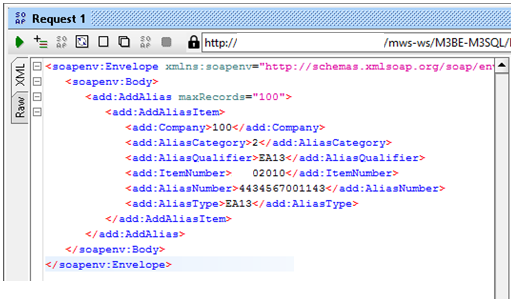
then manipulate the default request to reflect the call you want to make:
becomes

Execute the test and validate that the data has been posted into M3. 

The XML above is the template for the file we will create below.  We want everything apart from the <soapenv> tags so:

  <AddAlias>   
   <AddAliasItem>   
    <Company>100</Company>   
    <AliasCategory>2</AliasCategory>   
    <AliasQualifier>EA13</AliasQualifier>   
    <ItemNumber>  02010</ItemNumber>   
    <AliasNumber>4434567001143</AliasNumber>   
    <AliasType>EA13</AliasType>   
   </AddAliasItem>   
  </AddAlias>   


Note that when using SOAPUI, if your MWS is on the Grid then you'll use the authentication mechanism setup within LCM for this.  If your MWS is pre-Grid then you'll normally pass in the authentication as part of the XML string.  For this example I used MWS on the Grid which requires the authentication to be added via the Auth tab at the bottom of the SOAPUI screen.


Creating the XML file for for the Web Service

The starting point for this is a SQL Server table that has the field names and formats exactly the same as the Aliases in the M3 Web Service.  Note however that a date for M3 should be in the format YYYY-MM-DD.  It's better to use SQL type char(10) for this rather than datetime.

There are many articles showing how to use FOR XML to create XML output.  I won't reinvent the wheel here and will instead just jump straight to the solution we developed:

 declare @xml xml                    --Used to build the initial XML record  
 declare @output varchar(max);     --Used for the final XML record  
 --Obtain the inner data  
 WITH XMLNAMESPACES (   
 DEFAULT '""http://your.company.net/MMS025MI/AddAlias""')            
 select @xml = (  
 select   
 *  
 FROM [dbo].AddAlias AddAliasItem       
 FOR XML AUTO , ELEMENTS,root('AddAlias') )       
 --Fix the quotes around the namespace  
 select @output = (select convert(varchar(max),@xml))  
 set @output = REPLACE ( @output , '&quot;' , '"')  
 declare @cmd varchar(8000)  
 select @cmd = 'bcp "select ''' + @output + '''" queryout "C:\OUTPATH\data.xml"'  
      + ' -S SQLSERVERNAME -T -r -w -t -c -C RAW';  
 exec xp_cmdshell @cmd, NO_OUTPUT;  

Looking at the components of this:

 WITH XMLNAMESPACES (    
  DEFAULT '""http://your.company.net/MMS025MI/AddAlias""')  

This adds the XML namespace http://your.company.net/MMS025MI/AddAlias to the AddAlias node.

 select    
  *   
  FROM [dbo].AddAlias AddAliasItem  

This changes the node wrapping the actual data to AddAliasItem instead of AddAlias which is the table name.

 FOR XML AUTO , ELEMENTS,root('AddAlias') )   

This does two things.  Firstly by default FOR XML AUTO will treat the data as XML attributes on the AddAlias node.  Specifying ELEMENTS makes these appear as XML elements rather than attributes.  Secondly, while we renames the AddAlias node to AddAliasItem above, we still need an outer AddAlias node.  The command root('AddAlias') will add an outer AddAlias node wrapping the AddAliasItem node.

 select @output = (select convert(varchar(max),@xml))   
 set @output = REPLACE ( @output , '&quot;' , '"')  

The XML output from the FOR XML AUTO command will convert quote marks (") to &quot;.  ION however requires that quote marks appear as quote marks, so we use the SQL REPLACE command to find and correct these.

 select @cmd = 'bcp "select ''' + @output + '''" queryout "C:\OUTPATH\data.xml"'   
    + ' -S SQLSERVERNAME -T -r -w -t -c -C RAW';   
  exec xp_cmdshell @cmd, NO_OUTPUT;  

The final step is to output the generated XML data to the file system.  Here we use the SQL Server bulk copy command BCP to write the XML data to the disk.  We can call command line programs via xp_cmdshell and the NO_OUTPUT statement suppresses success or failure messages and makes the call cleaner.

This SQL logic will then take all records in the AddAlias and output these as a single XML file.  However, the M3 Web Service doesn't like multiple API commands in a single call, so we wrap this logic in a SQL cursor and output one record per XML file.  I'll cover the cursor logic in the last post in this series.

We can then take the XML file generated and test this in SOAP UI to confirm that what we have generated is compliant with the data required for the XML call.

Tuesday, September 9, 2014

Agile interface development using ION

I'm attending Inforum next week and will be presenting there on our experience using ION as part of an Agile interface development project.

In my presentation I cover briefly the details of the methodology we developed for this project which allows us to build a basic interface between two systems in about 30 minutes.  In this post I'll outline this methodology and, over the next few posts, I will build out the detail of how this works.

Note that the interface approach I'll describe here focuses on the plumbing between the two systems and intentionally moves business logic for any transformations, control flow or quality of service required outside the interface itself.


There are 5 main components of the interface:

  1. M3 Web Service
  2. ION Endpoint for Web Service
  3. ION Endpoint for file system
  4. ION Document flow to connect Web Service and file system
  5. SQL server stored procedure to create XML file for ION

Each of these components take about 5 minutes to set up, and the way they are set up is the same for all web services which makes for a very quick, repeatable process.

M3 Web Service

A M3 Web Service can be built over M3 APIs, most M3 programs, or SQL statements or stored procedures.  We've covered how to build web services over M3 programs and SQL statements before.  As part of this series I'll cover how to build a web service over an API.

Via M3 Web Services and the M3 Web Services Designer (both licensed modules from Infor) we expose the API as a SOAP web service, which can be widely consumed to allow easy integration with M3.  Conveniently, ION can consume these Web Services and thereby expose standard M3 APIs for List, Get, Create, Update and Delete functions.

ION Endpoint for Web Service

This advises ION the url that the web service will be exposed on, and the methods that will be exposed via this web service.  We also define the authentication with M3 (using a M3 username and password) and the identifier that will be used to track the processing of the ION message.

Through this endpoint ION will be able to call the web service we defined above.

ION Endpoint for File System

For this interface design we're accepting an XML file from an external system (in this case SQL Server) and passing this through ION to M3.  So here we define the source directory where ION will find the XML files.  This source directory can be on a network share, so we also specify the authentication to connect to that share.

Note that we could instead of using the file connector be querying a SQL Server directly via a stored procedure, but we chose the file system approach as it was ultimately simpler and led itself more to code reuse than the direct to SQL approach did.

ION Document flow

The document flow connects the endpoints together and the XML data that will be passed from the file system to the web service.  The document flow is where we can use the ION mapper to define business logic (like we can in MEC), but with this approach we do not.  ION is simply used to pass the message between systems.  Again this design decision reduced complexity and enabled reuse.

SQL Server to create XML file

Here we use SQL server to create the XML file that ION requires.  The SQL Server command "FOR XML" allows us to take the output from a SQL query and generate an XML document.  We then use bcp to create the XML file.


When we put these components together the architecture looks like this:

The two components on the left refer to the solutions we were integrating with M3 via ION, in this case Infor's Advanced Planner and Advanced Scheduler and a manufacturing plant.

In my presentation I go into some detail about the challenges inherent in those integrations and why an Agile approach was required.

The following posts will cover:
  • Building a M3 Web Service over an API and SQL Server's FOR XML
  • Building the endpoints and document flow in ION
  • Control logic and other considerations

Tuesday, September 24, 2013

M3 13.1 / BE 15 & SmartOffice 10.1.1 UI improvements

I've been using BE 15 for a few weeks now with Smart Office 10.1.1 and I wanted to mention a few of my favourite UI improvements.

There are simple things like the Text Block now defaulting the active control to the Next button.  This is a great time saver when you have T in your panel sequence and you are pressing ENTER to move between the panels.
With BE 14 and below the default control was the text field so you needed to use the mouse or Tab key to get to the Next button to submit which interrupted a user's flow.  Now with BE 15 you can just keep pressing ENTER to move between the panels including Text panels.


The new toolbox screens are great.  Infor has built a new toolbox screen standard (see NCR 5418 on InforXtreme for details) which provides both additional toolbox screens but also enhanced capability within the toolbox screens.  

There are three major parts to this change:
  1. Views can now be linked to Sorting Orders.  With previous versions of the BE toolbox screens could use any view with any sorting order.  This would often lead to combinations that made little workflow sense.  You can now specify on a View that this should be restricted to a specified Sorting Order.
  2. Views are extended to 30 columns with up to 250 characters which is close to double the previous limits.  This allows us to make proper use of widescreen monitors.
  3. Columns within the Views can be logically formatted.  We can specify date formatting, numerical formatting, financial formatting (appending CR to negative values) etc.
This is a big change and very beneficial to the screens that support the new toolbox standard.  However screens that were previously toolbox screens (OIS300, MMS200, PMS100, PMS170, PPS170 etc.) have not been updated to support the new standard.  This is a shame as the new standard is a significant improvement over what was offered before.  This does make BE 15 a bit of a transitional release with different approaches to creation and maintenance of the toolbox screens depending on which program you are in.


Perhaps my favourite new function however is the addition of related tables and virtual fields.  These are a framework that allow us to easily build functionality that extends M3.  The related tables can be found from the new program CMS005.
Here I have created a new custom table and linked it to MMS001 based on the primary keys
With a very simple JScript I am now able to easily add additional fields to MMS001 from the custom table I created in CMS011 and read and write these via the native M3 APIs e.g.
It's also now possible to show these custom fields in the new toolbox screens.

We were able to do this already with Mashups, JScripts and Web Services, but this new functionality bakes this into the core of M3 and makes building extensions to M3 significantly easier.


Some of the functionality highlights I see as particularly valuable for my customers includes:
  • Customer Order workflow improvements to significantly reduce the number of panels required to enter a CO
  • Improvements to the Purchase Order process to ease the analysis of alternate acquisition methods and print a PO without sending it to the supplier
  • Improvements to the Balance ID toolbox to bring some of the DO creation functionality initially introduced in Warehouse Mobility back into the core M3 package
  • Changes to the stocktake functionality to reduce the cost of undertaking cyclic stocktakes by initiating stocktakes on empty locations and during picking
  • Significant improvements for the F&B industry including best before & harvest / kill dates, ageing in hours and minutes, GS1-style extensions to PO processes and addition of allocation restrictions to ensure that a customer is never shipped older product than has already been dispatched to them
  • Lot blending within silos and Lab Inspection changes to allow Lab Inspections at the Balance ID rather than lot level
  • An API for GLS850
  • Improvements to the ability to reconcile the logistics and general ledger systems
  • The ability to mark a user as "Deactivated" within MNS150 without deleting the user.

As time allows I'll cover some of these in additional posts.